Thursday, April 3, 2014

How to completely uninstall LibreOffice from Ubuntu and derivatives

I found myself installing LibreOffice by mistake in Elementary OS. Yes, I am not a LibreOffice fan. I like Kingsoft Office a lot more, but that's not the purpose of that post. After noticing my mistake I tried wanted to get rid of it. 

My first instinct  was to go to the Software Center and remove it using the comfortable GUI that it offers. Since I installed the office suite in a bulk installation I didn't know that in the software center, the apps were separate. So I started removing them one by one, hoping that after 5 clicks I would be done. 
Unfortunately though, I wasn't. There was still the "App who rules them all".
It wasn't just the icon that was left. Also the defaults were still set to LibreOffice to open documents and spreadsheets. What annoyed me most was Google Chrome trying to launch it each time I clicked on a document.

So I went to the good old terminal and did it the right way. I'll put it here so that everyone who wants to can use it.
sudo apt-get remove --purge libreoffice*
sudo apt-get clean
sudo apt-get autoremove
Enjoy!

Sunday, March 30, 2014

The illusion of money


This is a picture I have had in my laptop for almost a year now. I felt it was time to share it with the world. Here is represented in a graphical interface the flow of money from a multitude of companies in our perfectly capitalized world.
As you can see, even though there is a very large number of companies out there the money really goes to a handful of them.
Now this picture is not complete, since industries like oil, telecommunication, electronics, etc are not represented here, but the idea is the same. Our market, our world is not as open and fair as it is pretended to be.
I won't say much more about this because I want you to think about this yourselves. This is not a conspiracy theory, it's the reality in which we live in.
Check it out and tell me what you think.

How to download songs from Grooveshark directly from Chrome

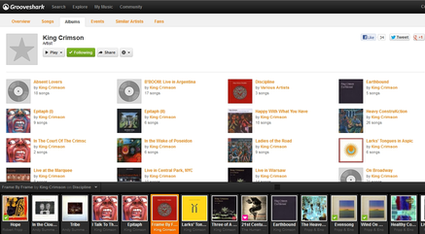
Grooveshark is a music streaming service used by many people(including me). Even though it has many legal disputes it is still one of the best music streaming services out there. The ability to upload you own songs and get music others have uploaded is the feature that makes this service so successful.


Image from Wikipedia
Google Chrome, on the other hand, is the browser of choice of approximately half the web users today(55.7% according to W3Schools).
Now trying to download music from Grooveshark would kind of beat the purpose of the service itself, which is to listen to music online. For different reasons though, we find the need to have access to some of our music even offline. When we want to listen  music on our mobile devices, mobile data plans can get pretty pricey.
Luckily, Chrome has plenty of add ons. One of them is Grooveshark Downloader. This simple add on allows you to download songs from your Grooveshark collection. It will add an icon on the right side of your Omnibox. That icon doesn't do much. If you click it, it will launch Grooveshark in a new tab.

What you need to do to use it though is to go to a certain list(it doesn't work on your entire song collection) and a download button will appear on the right side of the singer. Click it and a progress percentage will take its place when done it will ask you to save the mp3 file.

 Now the question is how to install it. Since the add on is not form the Store you can't install it the normal way. Here is what you should do.

1. Save the add on file in your hard drive. Download 
2. Type  chrome://extensions/ in your Omnibox.
3. Drag and drop the file.
4. Install and enjoy downloading your songs.

Wednesday, March 26, 2014

How to Install Microsoft Fonts in Linux

Using Linux on a daily basis you'll often find yourself missing some of the standard things you'd find in a Windows OS. For many, this may not be a big deal especially when the missing things are just fonts. But for some of us, they are part of our daily routine.
Students for example are required to use certain standards. Hell, I've had professors who wouldn't accept a paper if not written in Times New Roman.

The good news is that these fonts are just a command line away. There are graphical ways to do this but they may not work in every case. This command line though will get you the fonts you need in most cases of Ubuntu based distros.


sudo apt-get install msttcorefonts

Now this process takes a while to complete. Just be patient while the terminal gets the files and installs them. In the end you will have fonts such as Times New Roman, Arial, Comic, etc.

Monday, March 24, 2014

Sublime Text: How to install in Ubuntu based distributions

Sublime Text is one of the best text editors out there. It is full of features that aim to make every developers life easier. It is available  for Windows, Mac and Linux. In this post I will show you different ways of getting the app for Linux(Ubuntu based distros)


Install via the Package Manager(apt-get):

I know this already answered but you can simply just add to your packages:

For Sublime-Text-2:

sudo add-apt-repository ppa:webupd8team/sublime-text-2
sudo apt-get update
sudo apt-get install sublime-text

For Sublime-Text-3:

sudo add-apt-repository ppa:webupd8team/sublime-text-3
sudo apt-get update
sudo apt-get install sublime-text-installer

Install Manually via Terminal:

Download from the Sublime Site:
32-bit:
wget http://c758482.r82.cf2.rackcdn.com/Sublime\ Text\ 2.0.2.tar.bz2
tar vxjf Sublime\ Text\ 2.0.2.tar.bz2
64-bit:
wget http://c758482.r82.cf2.rackcdn.com/Sublime\ Text\ 2.0.2\ x64.tar.bz2
tar vxjf Sublime\ Text\ 2.0.2\ x64.tar.bz2
For Both::
sudo mv Sublime\ Text\ 2 /opt/
sudo ln -s /opt/Sublime\ Text\ 2/sublime_text /usr/bin/sublime

Enjoy Sublime Text!
Source: Ask Ubuntu

Saturday, March 22, 2014

Caffeine, Solution to Computer Sleep

This is a solution to a problem I had raised in a previous post, that of the computer going to sleep while watching a video usually with flash player.

Post: A-bugging-thing-in-everyday-linux-based-OSs

Thankfully I found an app that targets this specific problem. It's called Caffeine and it does exactly that. It allows you to add programs that will prevent the computer from sleeping while their running. It even has an option specific to Adobe Flash Player.

Here is a picture demonstrating this:

Its pretty simple and straight forward to use.

How to install:

Just copy paste the following commands in the Terminal


sudo add-apt-repository ppa:caffeine-developers/ppa

sudo apt-get update


sudo apt-get install caffeine python-glade2

Tip: Connecting to archive.ubuntu.com takes a long time? 

Friday, March 21, 2014

Connecting to archive.ubuntu.com takes a long time?

Each time I add new repositories to my Elementary OS(Ubuntu based) I need to update the package lists. So normally I have to apply the following command:
sudo apt-get update
Each time I do this though, the terminal gets stuck at a certain point.
100% [Connecting to security.ubuntu.com (2001:67c:1360:8c01::19)]
 After looking around a little bit I found out that there is a problem with what protocol does the system use IPv4 or IPv6. It is better to let it chose by itself. The remedy for this would be to modify a small config file. The file I'm talking about is situated in the /etc folder and it's called gai.conf.

This file though is not modifiable by the user. To fix this you can just paste the following command in the terminal:
sudo chmod 777 /etc/gai.conf
Now just go and open the file with your favorite text editor and uncomment the precedence line:
#
#    For sites which prefer IPv4 connections change the last line to
# 
precedence ::ffff:0:0/96 100  

Now everything should run smoothly. Enjoy installing new stuff again! 

Elementary OS: How to map a network drive?

As the tittle says this post is about how to connect to a network drive in Elementary OS Luna. I used the term "map", to make it more familiar to Windows Users. 

In Windows to do this you just right click on the My Computer icon and follow the steps.

In Elementary OS it is not very different. "Files" is the default file manager. It is through Files that we will connect to the network drive just like to any other drive.

Unfortunately in Elementary OS you can't take screenshots while the right mouse button is clicked. So I will try to be simple.

First open files through the Applications drawer.


Right click on Entire Network and select "Connect to Server..."

A new window will appear that will require you to fill in the required information to connect to the network drive. In my case I am using a Windows Share server in my university. I have used asterisks for privacy purposes. 

After filling everything and clicking continue it will ask you to verify your credentials once again. Don't worry just click continue again.


As you can see the network drive successfully connected. It is listed in the Network Section, and you can unmount it just like a normal drive. 

A bugging thing in everyday Linux based OSs

As an everyday Operating System I am using Elementary OS for more than a month now. I have to admit, it is one of the best Ubuntu based OSs out there. The feeling you get by using it is of a premium software. Everything feels carefully thought and crafted.

Before that I have used other operating systems such as Linux Mint, Ubuntu, etc. All of them very easy and comfortable to use

Having said that there is something that throughout the years I have not quite grasped yet. Streaming videos seems a seamless experience in Windows. You open the video and whether it is 5 mins or 50 mins it will prevent your laptop from going to sleep or from dimming the brightness. Also the mouse will also fade away. This doesn't happen in ElementaryOs or Linux Mint or even Ubuntu.


I am not talking about sites like YouTube. I am talking about Putlocker(now Firedrive),  Gorillavid, NovaMov, VidBux and copy sites of the aforementioned. They rely solely on  flash player without any extras.

I am annoyed of my laptop going to sleep halfway through the movie.

In software such as VLC this doesn't happen.

Do you have the same problem as me? If so comment what you think, or whether you have a solution about this(other than increasing the time it takes before the laptop goes to sleep).

Encrypted messages even in Google servers


As of Thursday March 20th 2014 Gmail will encrypt all messages passing through its servers. This will be done by using always using an HTTPS connection.

Google has offered HTTPS connection to individual accounts since 2008 and made it the default connection in 2010.

Even though the messages going from our personal computers to the Google servers were encrypted, the same messages while moving internally at Google were not. What changed is that now even in the Google Servers the messages will remain encrypted.

This is an important step for user privacy and security. It means now Google itself is less likely to check our messages.

It doesn't mean though, that government backed companies such as the NSA won't be able to request access to certain messages or even track them themselves. All hail to the free web!

Link to the official post in Gmail Blog.

Source: Gmail Blog